Key takeaways
Acuity Scheduling now offers QR code sharing for your booking page and individual appointment types.
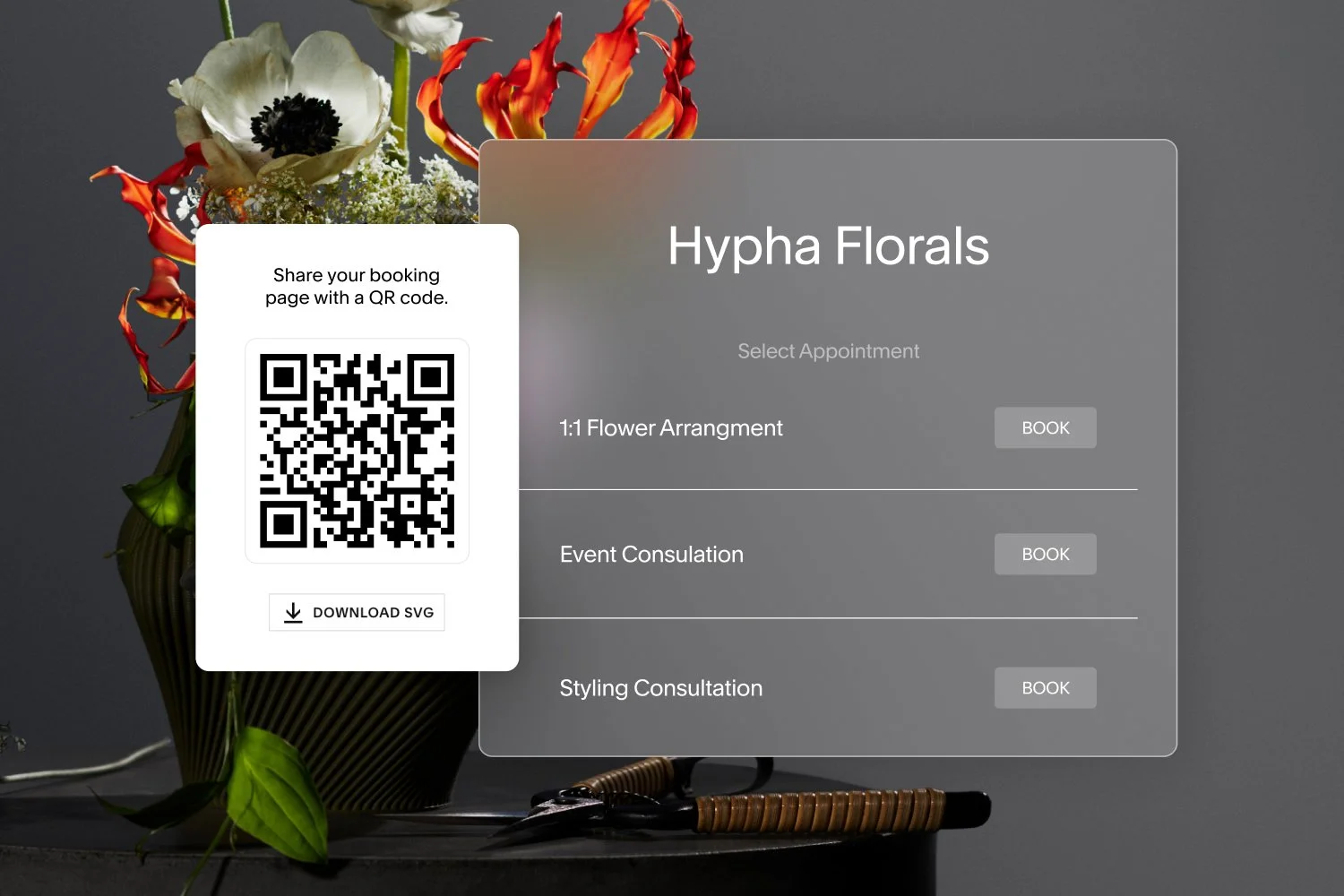
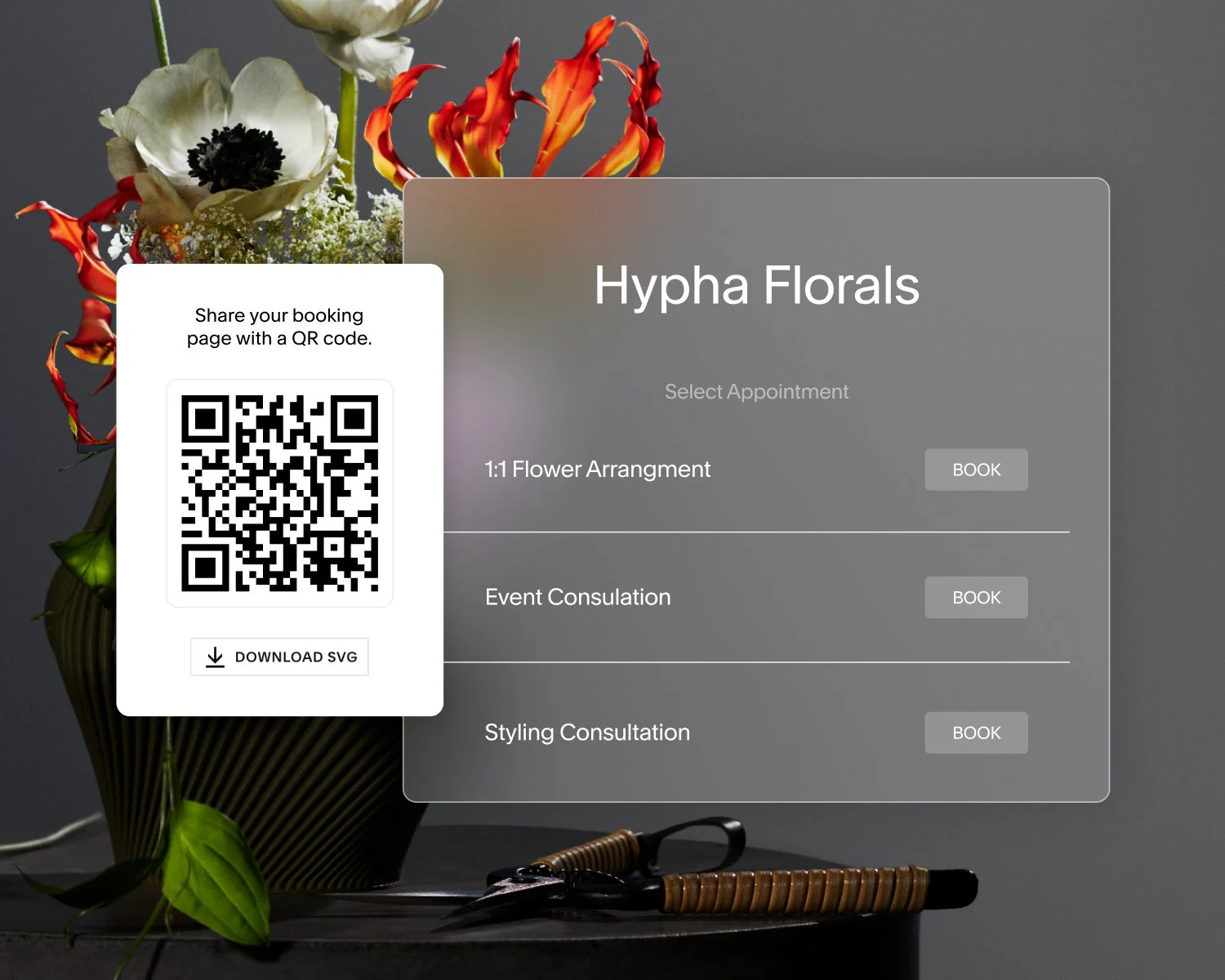
Clients scan the code with their phone, reach your scheduling page, and book without typing a URL.
Your QR code lives inside the same sharing panel you already use.
Download your code as a .png file and add it to business cards, signage, flyers, email signatures, or digital materials.
QR code sharing is available on all Acuity Scheduling plans.
You hand a new contact your business card. You pin a flyer to the studio wall. You set up a table at a local market. In each of these moments, your scheduling page is one of your best tools to book clients, but a typed-out URL doesn't help much when someone's standing in front of you.
With Acuity Scheduling, you can now generate a QR code for your appointment booking page. Clients scan it with their phone, land on your booking page, and choose a time on the spot. There’s no more link to type or friction to slow them down.
Here's how it works.
Why is sharing a scheduling link in person so difficult?
A scheduling link works well online because it’s easy to click. You can drop it in an email, add it to your website, or post it in your bio. Offline is where things get complicated.
A printed URL asks a client to stop, pull out their phone, and type it correctly. If they don’t, you could lose the booking, or you end up spelling out the address while someone waits behind them.
This shows up most for businesses that meet clients face-to-face, like salons, fitness studios, wellness practitioners, photographers, tutors, and healthcare providers. If you're already sharing your booking page in physical spaces, a QR code gives you a faster way to do it.
How does a QR code for appointment booking work?
A booking QR code helps move clients more easily from interest to scheduling an appointment. When a client points their phone at the code, it opens your scheduling page right away. From there, they choose a service, pick a time, and confirm their booking. The experience is quick and professional.
Your Acuity Scheduling QR code points to the same direct link your scheduling page already uses. There's nothing new to set up. If you customize your scheduling link later, your QR code updates automatically.
Where to find your QR code in Acuity Scheduling
You'll find QR code sharing in the panels you already use to share your booking page. There's a QR Code tab in two places, so you can share at the level that fits the moment.
Scheduling Page sharing panel: Open your Scheduling Page, go to the Link settings, and click the QR Code tab. This code opens your full scheduling page, where clients can browse and book any service.
Appointment Types and Services panel: Open a specific appointment type or service, then click the QR Code tab. This code sends clients directly to that one service, which is useful for more targeted promotion.
In each location, you'll see your QR code with a download option. To save the image, click Download PNG. From there, the file is yours to add to print or digital materials.
QR code sharing is available on all Acuity Scheduling plans, worldwide. Because it works on the web, you'll generate and download your codes from a browser rather than the mobile app.
What are the best ways to use your booking QR code?
A QR code travels with you. Once you've downloaded the image, you can add it almost anywhere your clients already look. A few practical places to start:
Business cards: Hand a card to a walk-in or a new contact and let them scan to book instead of typing a link.
Flyers and posters: Add the code to printed promotions for a class, event, or seasonal offer.
In-studio signage: Post a code at your front desk, in your waiting area, or near the exit so clients can book on their way out.
Social and digital materials: Use the code in posts, digital flyers, or event programs where scanning is easier than tapping through a link.
The right spot depends on how you meet clients. A photographer might add a code to a printed gallery insert. A trainer might post one near the gym entrance. A hair salon might keep one at the checkout counter. Pick the moments where booking should feel automatic and put your code there.
A smoother path from interest to booking
The point of a booking QR code is to remove a step. When someone's curious about your services, you want them to book before that interest fades. A QR code helps them act in the moment, whether they're holding your card or standing in your space.
This also keeps your offline and online presence consistent. The same scheduling page you share by link is now just as easy to share in person. Your clients get one reliable way to book and you get one less thing to manage.
Get your Acuity Scheduling QR code
Ready to share your scheduling page anywhere clients find you? To get started, open your Acuity Scheduling page, click the QR Code tab, and download your code.
If you’re not using Acuity yet, now’s your chance to try the experience for free.







FAQs
What is a QR code for appointment booking?
A QR code for appointment booking is a scannable image that links directly to your scheduling page. When a client points their phone's camera at the code, it opens your booking page in their browser so they can choose a service and book an appointment. This means no one has to spend time typing in a URL to find the time that works.
Which Acuity Scheduling plans include QR code sharing?
QR code sharing is available on all Acuity Scheduling plans. You don't need to upgrade to access it.
How do I get a QR code for Acuity Scheduling?
Open your Acuity Scheduling account in a browser, where you’ll find your QR code inside the sharing panels you already use. Open your Scheduling Page and go to the Link settings, or open a specific appointment type, then click the QR Code tab in either location. From there, click Download PNG to save the image.
Can I create a QR code for a specific service or appointment type?
Yes. In addition to an Acuity Scheduling QR code for your full scheduling page, you can generate a code for any individual appointment type or service. Open the appointment type, click the QR Code tab, and download the image. This sends clients directly to that specific service when they scan.
What happens if I update my scheduling link?
When you customize your scheduling link, your QR code updates automatically. Download the new version or reprint your materials to send clients to the right place.
Can I use my QR code in digital materials, or is it only for print?
Both. Your Acuity Scheduling QR code works anywhere you'd share an image, including printed flyers, business cards, and signage, as well as digital posts, email signatures, and event programs. Download the .png file and use it wherever your clients find you.
Do clients need a special app to scan the QR code?
No. Most smartphone cameras scan QR codes natively. Clients point their camera at the code and tap the link that appears. No additional app is required.